Guide
How to work with Canderix
First the quick start: your first application bundle in a few steps. Then the manual with every feature in detail.
Canderix automates the path to a good application, not the sending: you pick the roles, review every bundle and send it yourself.
Canderix deliberately puts quality over volume: a few fitting, checked applications rather than many identical ones – and still fast: each application in minutes instead of hours.
Quality over quantity – in no time
Why Canderix exists: a note from the founder on the home page.
Quick start (5 minutes)
Eight steps from installation to a finished application. Every step is described in detail in the manual below.
Better ten fitting, checked applications than a hundred identical ones.
-
1
Install the app and sign in
Install Canderix on Windows and create an account in the sign-in window. If you like, the app signs you in automatically next time.
-
2
Set up your vault
Open the “Vault” page and click “Analyze documents”. Choose your CV, references and certificates as PDF or image. The app files the facts automatically, detects duplicates, cuts out images, and you can undo the whole import.
-
3
Check your vault
Go through the categories and fix anything that is wrong. Everything in the vault may appear in your documents, nothing else will.
-
4
Choose a template
The “Templates” page offers 21 designs. Two are included, every other one is unlocked once. Below each card you pick the colour.
-
5
Add the job posting
On the “Generate jobs” page, paste a LinkedIn link or use “Paste manually” to add the posting’s description and application link.
-
6
Generate
Select the job and start generating. After a few minutes your CV, cover letter and, if you want it, your project portfolio are in the folder as PDFs.
-
7
Review and correct the bundle
The “Applications” page shows the PDFs in the preview. Select a passage and right-click to open the edit menu: replace, delete, adjust images.
-
8
Apply
“Apply” opens the application link in your browser, “Open folder” places the folder with the PDFs next to it. Afterwards you set the application’s status in the list.
Manual
This is what the app does and how it works. If something is missing, write to us via the help button.
Core principle: every statement is checked
Canderix writes from what is in your vault. Every statement in your CV, cover letter and portfolio is checked against a fact from your vault.
Sentences without a source are deleted before a PDF is created. That also applies to terms from the job posting that you cannot back up. If something is missing from your bundle, add it to your vault first.
For every bundle the app stores the sources in the file “Belege.json”. When you select a passage in the preview, the app shows under “Backed by” which vault fact supports it.
Vault: your facts
The vault is the only source for your documents. It is a folder of Markdown files on your computer and can also be opened with Obsidian.
Categories
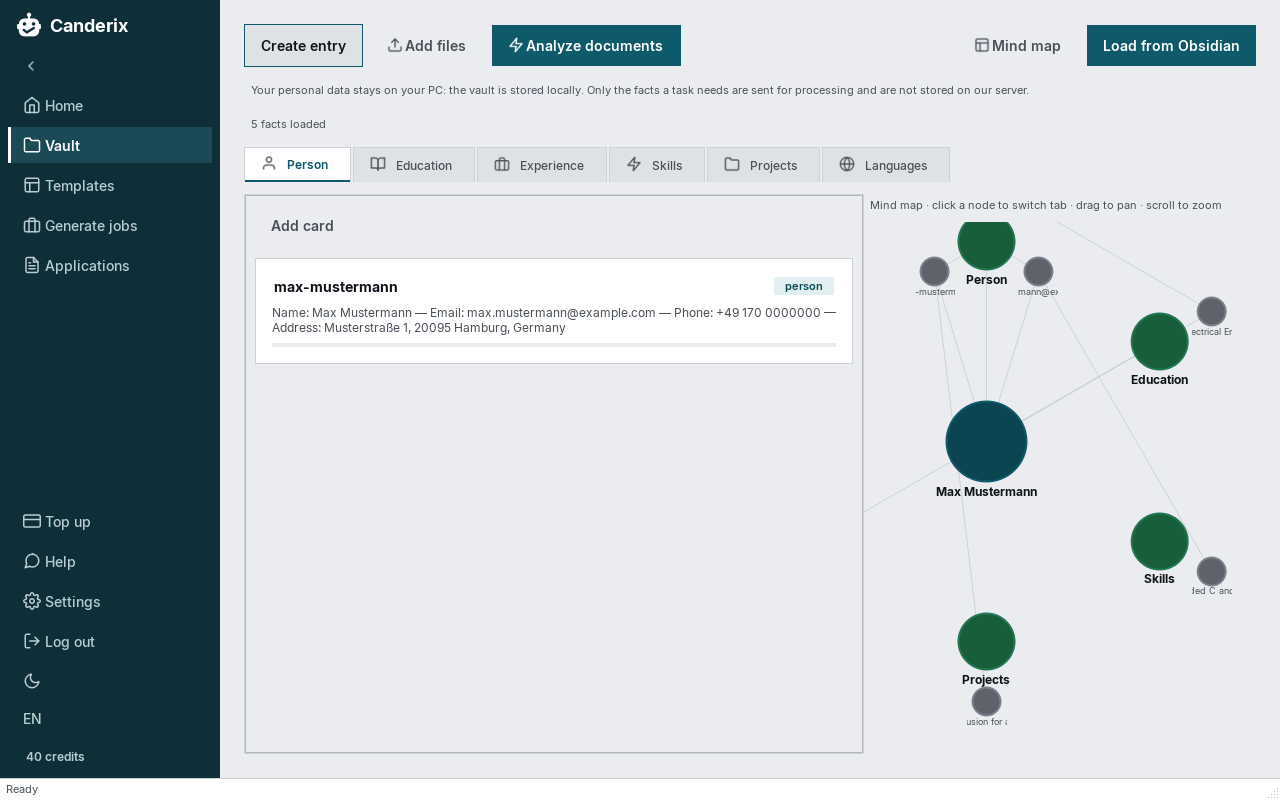
The app knows ten kinds of entries: person, education, experience, projects, skills, languages, certificates, publications, awards and volunteering. On the vault page they appear in the tabs Person, Education, Experience, Skills, Projects and Languages.
Editing cards
- Every entry is a card. A click expands it, where you edit and save the text.
- “Create entry” adds a new entry. A card can be deleted after a confirmation.
- “Add files” reads individual files, for example PDF, image, Markdown or text.
Gallery and images
“Show images” opens the gallery. Drag unassigned images onto a card to attach them to that entry. Project images later appear in the portfolio. Deleted images come back with “Restore”.
Mind map
The mind map shows your vault as a network. Clicking a node switches to the matching tab, dragging moves the view, scrolling zooms.
“Analyze documents” in detail
You choose PDFs or images. The app reads every document, cuts out the images in it and asks the AI for the facts in each document. Long documents are read in parts. Then the app matches every fact against your vault:
- Skipped: the entry is already in the vault in the same form.
- Extended: the entry exists, new details are only appended. Existing text is not overwritten.
- Created: the entry was missing and is added to the matching category.
At the end a report shows what is new, extended or skipped and how many images were assigned. The report is also saved in the vault. Before every import the app backs up the affected files, and “Undo” in the report restores the previous state. Images that could not be assigned to an entry are placed in the gallery.
Limit: the app does not recognise text inside images. Scanned pages without a text layer and plain photos are not read and cost no call; their images end up unassigned in the gallery.
Templates and designs
Every design contains a CV, cover letter, project portfolio and title page, each in German and English. The 21 designs by audience:
Typeset with LaTeX – the system universities and academic publishers use: clean typography, hyphenation and alignment on every page.
- Corporate and tech: two included designs, a modern design with a header band and a plain single-column tech design.
- Industry and engineering: numbered sections, a technical look.
- Management and consulting: serif type, summary at the top.
- International: compact, with a key-facts box and timeline.
- Research: in the style of a paper, with numbered publications.
- Academic: four designs for a university career – classic, modern, a British academic CV (up to two pages) and a paper style for research.
- Apprenticeship: three designs for hospitality, trades and office professions.
- Creative: magazine style for design and marketing.
- Classic: serif type and a DIN 5008 business letter, for example for public administration and banks.
- International: a one-page US résumé without photo, following the conventions of American university career services.
- Proven LaTeX classics: four freely licensed community templates (moderncv, AltaCV, Twenty Seconds CV, Jake's Resume), adapted for Canderix. The licences are listed in the app under Settings › Legal.
Unlocking
Two designs are included. You unlock every other one once on the templates page, and the amount is deducted from your balance. After that you use the design without limit.
Choosing a colour
Below each card are six colour circles, with the original first. The rainbow circle opens a free colour picker with live preview. The app darkens colours that are too light so the text stays readable. You can preview colours on locked designs too.
Page lengths
The cover letter fits on one page. Each design has its own word target for this, because the space on the letter page differs. A project with images takes exactly one page in the portfolio.
Generating an application
Canderix works for jobs and apprenticeships as well as doctoral and research positions; there are dedicated academic and research designs for these. Applications for a master’s programme, a scholarship or a semester abroad also work: paste the programme description instead of a job posting and check the wording in the cover letter, for example “position” where it should say “programme”.
Job sources
- Paste a LinkedIn link. For LinkedIn you sign in once in the app browser, and the session is kept.
- Load a .txt file with one link per line or drop it onto the list.
- “Paste manually”: description and application link from the employer’s website, without LinkedIn.
Fast or detailed
“Detailed” has the AI write every document to match the posting. “Fast” only fills the template fields, without the AI writing its own texts. The portfolio switch decides whether a project portfolio is created.
Language
By default the app detects the posting’s language, and all documents of a bundle are created in it. In the settings you can choose a fixed language instead.
- Fully supported: many languages written in Latin script, such as German, English, French, Spanish, Italian, Dutch, Polish or Turkish, plus Russian, Ukrainian, Bulgarian and Greek.
- Detected, but created in English: Chinese, Japanese, Korean, Arabic, Hebrew, Thai and Hindi. The app then shows a notice and puts a file “Hinweis.txt” in the folder.
Output folder
Every application gets its own folder in the output folder, which you set in the settings under “Paths”. Existing folders are never overwritten; a second run for the same job gets a number appended.
- 1 Your Name - Lebenslauf.pdf (CV)
- 2 Your Name - Motivationsschreiben.pdf (cover letter)
- 3 Your Name - Projektportfolio.pdf (portfolio), further attachments from number 4
- Plus the job posting as text, the application link and the sources file.
Correcting in the preview
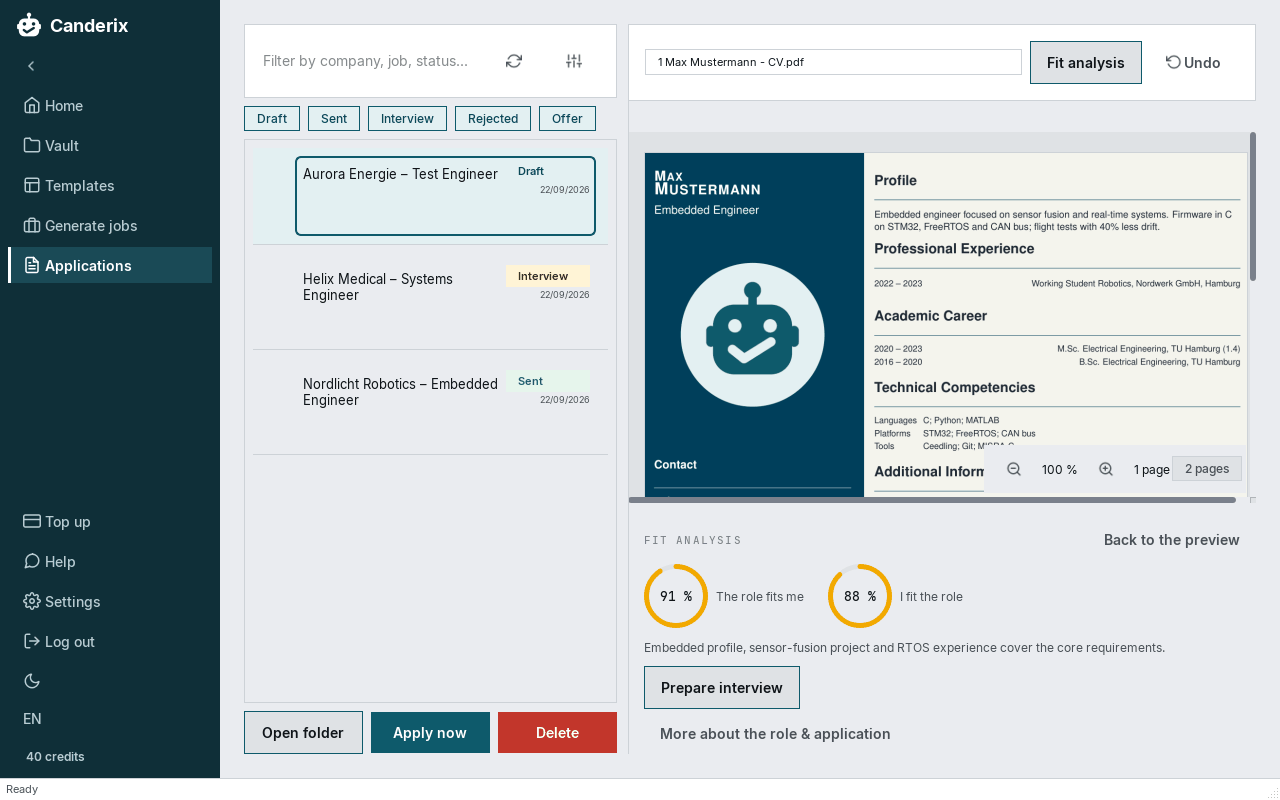
On the “Applications” page you correct the PDFs directly in the preview. The app changes the document’s source and rebuilds the PDF.
Selecting
- Clicking a word selects the word.
- Dragging selects a passage.
- Clicking an image selects the image.
Right-click menu
For text: replace, delete, rephrase, change heading and delete section.
For images: change the width (also with the drag handle on the image’s right edge), delete, replace, crop, arrange images side by side or stacked, and move them up or down.
What does a correction cost?
All corrections run without AI and cost nothing, with one exception: “Rephrase” is one task with one AI call. The AI receives the paragraph and the matching sources.
Your own text is checked
Whatever you type yourself must also be backed by your vault. If you replace text with a statement without a source, the app rejects the change and the old text stays.
Undo
Before every change the app makes a backup. “Undo” restores the state before the last change, several times in a row if needed. Replaced or cropped images are copies; the originals in your vault stay untouched.
Managing applications
- Status: every application has a status, draft, sent, interview, rejected or offer.
- Date: every row shows when the bundle was created.
- Filter: the gear icon filters by name, creation date, fit scores and status. The filter is kept for the next start.
- Fit analysis: two percentages, “The role fits me” and “I fit the role”, plus the reasoning.
Interview cheat sheet
“Prepare interview” reads the job page and the company’s website and turns them into a cheat sheet for the interview. It is saved as “Vorbereitung.html” in the folder and shown in the app. This is one task with several AI calls.
Credit and billing
- Task: one complete piece of work, such as generating a bundle, rephrasing a paragraph, analysing documents or creating a cheat sheet. The base fee is charged once for it.
- Call: every request to the AI model within a task. It is charged the call fee plus the model costs as used.
- Model costs: the cost of the AI model depends on the amount of text and comes on top of the fees.
- Package discount: a Premium package lowers both fees for life. Your best purchased discount applies; discounts do not add up, and free top-ups do not change it.
Why one task involves several calls
An application is built in several steps, and each of them is an AI call:
- Draft from your vault facts
- Second check of the statements
- Typesetting each document
- Pass against duplication between the documents
- Check for sentences without a source and targeted repair
- Automatic retries if a response is cut off or faulty
Fit analysis and the interview cheat sheet come on top if you use them. The base fee is charged once per task; every call costs the call fee plus model costs. How many calls it takes depends on the role, your vault and the check results. The checks are there on purpose: they look for statements without a source.
Cancellations
A call that has reached the model is charged, even if you cancel it. The usage is then estimated. Repeated cancellations in the middle of a call lead to a block, permanently if it keeps happening.
Buying credit
“Top up” in the sidebar opens the purchase dialog with all packages and the “Top up credit” field. You pay with PayPal in a separate browser window. The credit is added only once the server has confirmed the payment.
Before buying you agree that the service starts immediately. This ends your right of withdrawal. Without this consent no purchase is possible.
Help and support
The “Help” button in the sidebar opens a form. Your message goes directly to us; an email address for the reply is optional. The app version, operating system, current page and the AI model in use are sent along.
If an error occurs in the app, it sends an error report automatically: error type, message and technical trace, plus page, app version, operating system and model. Your user folder is masked, and your vault contents are never transmitted. You can switch the reports off in the help dialog.
You can also reach us by email:
Common pitfalls
“LaTeX is not installed”
The PDFs are typeset with LaTeX. Install MiKTeX; the app offers a button for this. On the first run in a new language MiKTeX downloads missing packages, which needs an internet connection.
Not enough credit
Before every call the server checks whether your balance is sufficient. If not, the app stops before any cost is incurred. Top up via “Top up” in the sidebar and start again.
Design not unlocked
If you picked a locked design, the task does not start and nothing is charged. Unlock the design on the templates page or pick an included one.
Cover letter too long
Each design has a word target for one page. If the cover letter is still too long, delete individual sentences or sections in the preview; that is free. Or pick a design with more room on the letter page.